
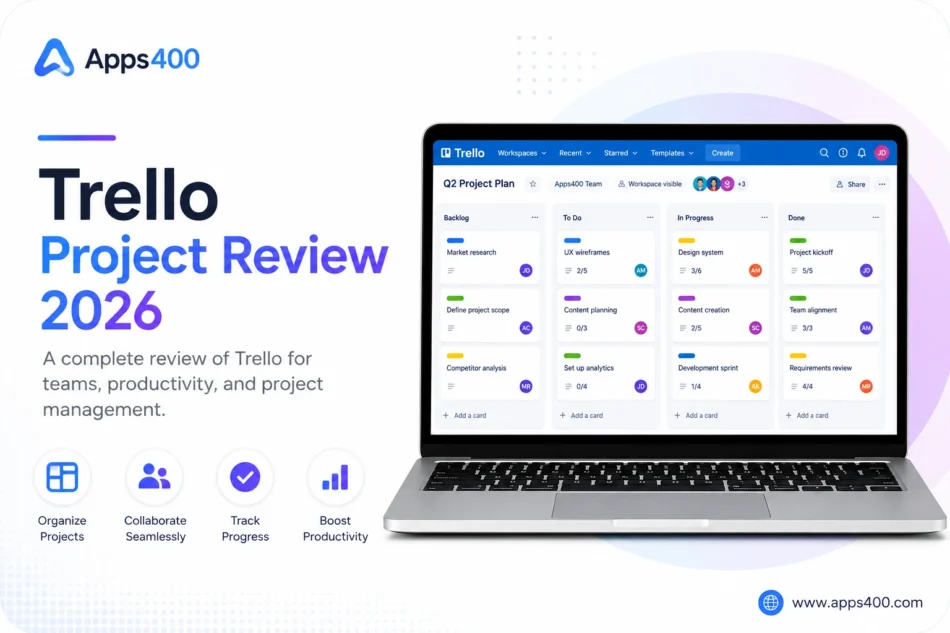

Six months ago, I managed projects through spreadsheets, random notes, and prayers. Tasks fell through cracks, deadlines surprised me, and I couldn’t see project status at a glance. Then I tried Trello’s visual board system, and project management finally clicked.
This review comes from someone who’s managed 8 projects, created 200+ cards, and collaborated with 3 teams—all on Trello’s deceptively simple interface.
What Is Trello?
Trello is a visual project management tool built on the Kanban methodology. Instead of lists or spreadsheets, you organize work on boards filled with cards that move through columns representing workflow stages.
Think: sticky notes on a whiteboard, but digital, collaborative, and infinitely more powerful.
Key features: Boards (projects), Lists (workflow stages), Cards (tasks), Labels, Due dates, Attachments, Checklists, Team collaboration, and Butler automation.
Access via trello.com (web), desktop apps (Mac, Windows), or mobile apps (iPhone, Android).
Pricing: Free vs Premium Plans
Trello Free (Forever):
- 10 boards per workspace
- Unlimited cards and lists
- 1 Power-Up per board
- 10MB file attachments
- Surprisingly functional
Trello Standard ($5/month per user):
- Unlimited boards
- Unlimited Power-Ups
- 250MB file attachments
- Advanced checklists
- Saved searches
- Good for small teams
Trello Premium ($10/month per user):
- Everything in Standard
- Multiple board views (Calendar, Timeline, Dashboard)
- Unlimited workspace command runs
- Simple data export
- Admin controls
- For growing teams
Trello Enterprise ($17.50+/month per user):
- Organization-wide permissions
- Attachment permissions
- Public board management
- Free guest accounts
- For large companies
I’ve used Free for personal projects and Standard ($60/year for my 12-person workspace) for client work. Standard is the sweet spot for most teams.
The Trello Workflow: Boards, Lists, Cards
Creating Your First Board (5 minutes):
- Sign up at trello.com
- Create board (name it: “Website Redesign Project”)
- Add lists: “To Do,” “In Progress,” “Review,” “Done”
- Create cards for tasks
- Drag cards across lists as work progresses
Visual example of my content calendar board:
- List 1 – Ideas: Brainstormed topics
- List 2 – Researching: Topics being researched
- List 3 – Writing: First drafts
- List 4 – Editing: Under review
- List 5 – Scheduled: Ready to publish
- List 6 – Published: Live articles
One glance shows exactly where every article is in the pipeline. No digging through spreadsheets.
Features That Make Trello Work
- Cards – The Building Blocks
Each card represents a task. Click to open and add:
- Description: Details, context, requirements
- Checklist: Sub-tasks (I use this for article outlines)
- Due date: Deadlines with calendar integration
- Labels: Color-coded categories (Urgent, Bug, Feature, Marketing)
- Attachments: Files, links, Google Drive docs
- Comments: Team discussion
- Members: Assign people to tasks
Cards are simple yet contain everything needed for task completion.
- Automation with Butler
Butler is Trello’s built-in automation tool. Create rules like:
My Butler automations:
- When card moves to “Done” → Mark due date complete, add “Completed” label
- Every Monday at 9 AM → Create card “Weekly Planning” in “To Do” list
- When due date is tomorrow → Send me notification
- When checklist is completed → Move card to “Review”
No coding required. Click-based rule builder. Has saved me 2-3 hours weekly on manual card management.
- Power-Ups – Extensions
Power-Ups add functionality. Free plan gets 1 per board. Standard/Premium get unlimited.
Power-Ups I use:
- Calendar: See all due dates in calendar view
- Custom Fields: Add priority levels, status, effort estimates
- Slack: Send Trello notifications to Slack channels
- Google Drive: Attach Drive files directly
- Voting: Team members vote on card priority
Power-Ups transform Trello from simple boards into customized project hubs.
- Multiple Board Views (Premium)
Premium unlocks alternative views of the same data:
Timeline View: Gantt chart showing task dependencies and project timeline Calendar View: Due dates displayed on calendar Dashboard View: Charts showing progress, assignments, completion rates Table View: Spreadsheet-like view for bulk editing
I primarily use Board view but switch to Timeline for client presentations (looks more professional than sticky notes).
- Templates
Trello offers 100+ board templates:
- Kanban template
- Scrum sprint planning
- Marketing campaigns
- Product roadmap
- Personal productivity
I duplicated a “Content Calendar” template and customized it in 10 minutes versus building from scratch.
For more project management tools, check Apps400’s web apps guide.
What Trello Does Poorly
Problem #1: Not for Complex Projects
Trello is simple. Too simple for projects needing:
- Critical path analysis
- Resource allocation
- Complex dependencies
- Budget tracking
- Time tracking
For enterprise project management, use Asana, Monday.com, or Microsoft Project.
Problem #2: Limited Reporting
Trello shows what’s happening but not WHY. No built-in analytics on:
- Team velocity
- Bottleneck identification
- Time to completion
- Productivity metrics
Third-party Power-Ups add some reporting, but it’s clunky.
Problem #3: Can Get Messy Fast
Without discipline, boards become card graveyards. I’ve seen boards with 300+ cards in random order—completely unusable.
Solution: Archive completed cards regularly. Use labels consistently. Limit active cards per list.
Problem #4: Collaboration Notifications Overload
Active boards generate constant notifications: “Sarah added a comment,” “John moved card X,” “Due date tomorrow.”
Fix: Customize notification settings. I only get notified for @mentions and due dates.
Trello vs Competitors
Trello vs Asana:
- Asana wins: Better for complex workflows, superior reporting, timeline views
- Trello wins: Simpler, more visual, easier learning curve, cheaper
Trello vs Notion:
- Notion wins: All-in-one workspace, databases, notes + projects combined
- Trello wins: Focused on project management, faster board creation, better mobile app
Trello vs Monday.com:
- Monday wins: More customization, better automation, advanced features
- Trello wins: Simpler interface, lower price, faster setup
My verdict: Trello excels at simple-to-medium complexity projects for small teams. For enterprise needs, upgrade to Asana or Monday.com.
Real Results: My 6 Months on Trello
Projects managed: 8 (3 client projects, 5 personal) Cards created: 247 Completed tasks: 189 (76% completion rate) Team members: 12 across different boards Butler automations: 7 active rules
Time saved: ~3 hours weekly (vs spreadsheet management) Project visibility improvement: Massive. I see bottlenecks instantly now. Missed deadlines: 2 (vs 8-10 pre-Trello)
Cost: $30 for 6 months (Standard plan) Value: 18 hours saved × $30/hour = $540 value ROI: 18x return
Should You Use Trello?
Use Trello if:
✅ You’re a visual thinker who loves seeing workflow
✅ You manage simple-to-medium complexity projects
✅ You work with small teams (2-20 people)
✅ You want quick setup (boards in 5 minutes)
✅ You prefer simple tools over feature-heavy software
Skip Trello if:
❌ You need advanced project management (dependencies, critical path)
❌ You require robust reporting and analytics
❌ You manage enterprise-scale projects (100+ people)
❌ You want all-in-one workspace (notes + projects + docs)
My Rating: 4.4/5 Stars
Pros:
- Incredibly intuitive visual interface
- Fast to set up and use
- Butler automation is powerful
- Excellent mobile apps
- Generous free plan
- Active development and updates
Cons:
- Too simple for complex projects
- Limited built-in reporting
- Can get messy without discipline
- Notification overload (fixable)
- Premium features locked behind paid tiers
Bottom Line: Trello makes project management visual and accessible. Six months in, I can’t imagine returning to spreadsheet chaos. The ability to see project status at a glance—what’s stuck, what’s moving, what’s done—transformed how I work.
Trello isn’t for everyone. Enterprise teams need more power. But for freelancers, small businesses, and teams wanting simple project management, Trello delivers exactly what’s needed without overwhelming complexity.
Start with the free plan. Create 2-3 boards. If you hit the 10-board limit or need multiple Power-Ups, upgrade to Standard ($5/month per user). The visual clarity alone justifies the cost.